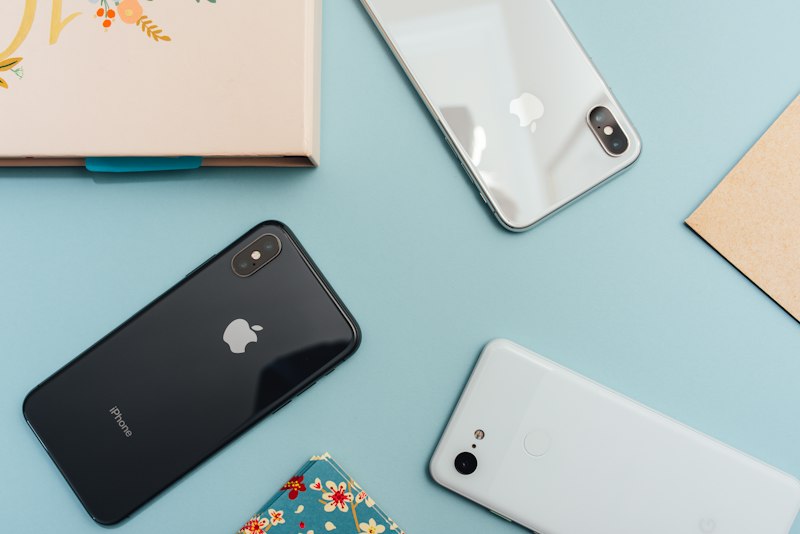
3 Practical Tech Tips to Start Your Week Smarter

Tech Tips — Monday, July 6, 2026

3 Practical Tech Tips to Start Your Week Smarter

Trim your AI toolkit, lock down your phone, and stop draining your battery — all in under ten minutes.


🤖 Tip 1: Build a Three-Tool AI Stack, Not a Ten-App Junk Drawer

ProductivityThe biggest productivity mistake most people make in 2026 isn't using too little AI — it's using too much of it, scattered across a dozen subscriptions that never quite integrate. Analysts tracking workplace AI adoption this year consistently point to the same fix: pick one tool for writing and drafting, one for scheduling and time-blocking, and one for automating repetitive tasks, then actually learn their shortcuts instead of hopping between apps.

Before adding anything new, audit what you already pay for. Google Workspace, Microsoft 365, and Notion have all quietly built serious AI features directly into their existing subscriptions, and most users never turn them on. A research assistant like Perplexity can pull cited answers from dozens of sources in minutes when you need a fast, sourced summary, while a meeting-notes tool such as Fireflies removes the need to type during calls entirely.

Try this today

List every AI subscription you're currently paying for. Cancel anything that overlaps with a feature already built into a tool you use daily, and keep only the three that cover writing, scheduling, and automation.


🔐 Tip 2: Swap Your SMS Codes for Passkeys This Week

Security Smartphone lock screen representing mobile security

SIM-swap attacks remain one of the most reported mobile threats heading into the back half of 2026, and they work precisely because so many accounts still rely on a text-message code for two-factor authentication. If someone convinces your carrier to move your number to their SIM, every "verify via SMS" login becomes theirs too. The fix is to switch to passkeys or an authenticator app wherever a service offers them, since both resist phishing in a way a six-digit text code simply cannot.

While you're in your phone's settings, take two more minutes to review app permissions. Revoke microphone and camera access from anything that doesn't genuinely need it, and set location permissions to "while using the app" instead of "always" for anything non-essential. It's a small chore that closes off a surprising number of quiet data leaks.

"Passkeys are the best choice for multi-factor authentication because there's no code to trick out of you — you either have the device or you don't." — Mobile security researchers, 2026

🔋 Tip 3: Follow the 20/80 Rule and Clear Storage Before It Clears Your Battery

Devices Smartphone charging cable plugged into a device

Lithium batteries age fastest at the extremes, so the habit that actually preserves long-term capacity is keeping your phone or laptop between roughly 20% and 80% charge rather than running it down to zero or leaving it glued to the charger overnight. If you're not using a device for an extended stretch, storing it around 50% in a cool, dry spot well under 90°F protects the cell far better than storing it full.

Less obvious is the link between storage space and battery drain: when a device's storage gets close to full, the operating system has to work harder to manage files and juggle apps, which quietly increases power consumption. Clearing out unused apps, old photos backed up elsewhere, and cached files does double duty — it frees up space and gives your battery an easier day.

20–80%
Ideal Daily Charge Range
~50%
Best Charge for Long-Term Storage
<90°F
Safe Storage Temperature

Comments

Popular posts from this blog

🔥 The 3 Best-Selling Mini PCs on AliExpress in 2025 – Full Comparison and Buyer Insights

Best Tablet Controller for iPad Pro 13-Inch: Razer Kishi V3 Pro XL Ultimate Guide

The Permission You Forgot You Granted: A 30-Minute Audit of Every App Connected to Your Accounts